Download TimeMarkerGps for Field Photo Capture
Install TimeMarkerGps on iPhone or Android to capture project photos with available time, GPS, location, logo, and note context. Connect the app to Teamspace when your team also needs shared project organization, office review, mapping, reporting, or export workflows.


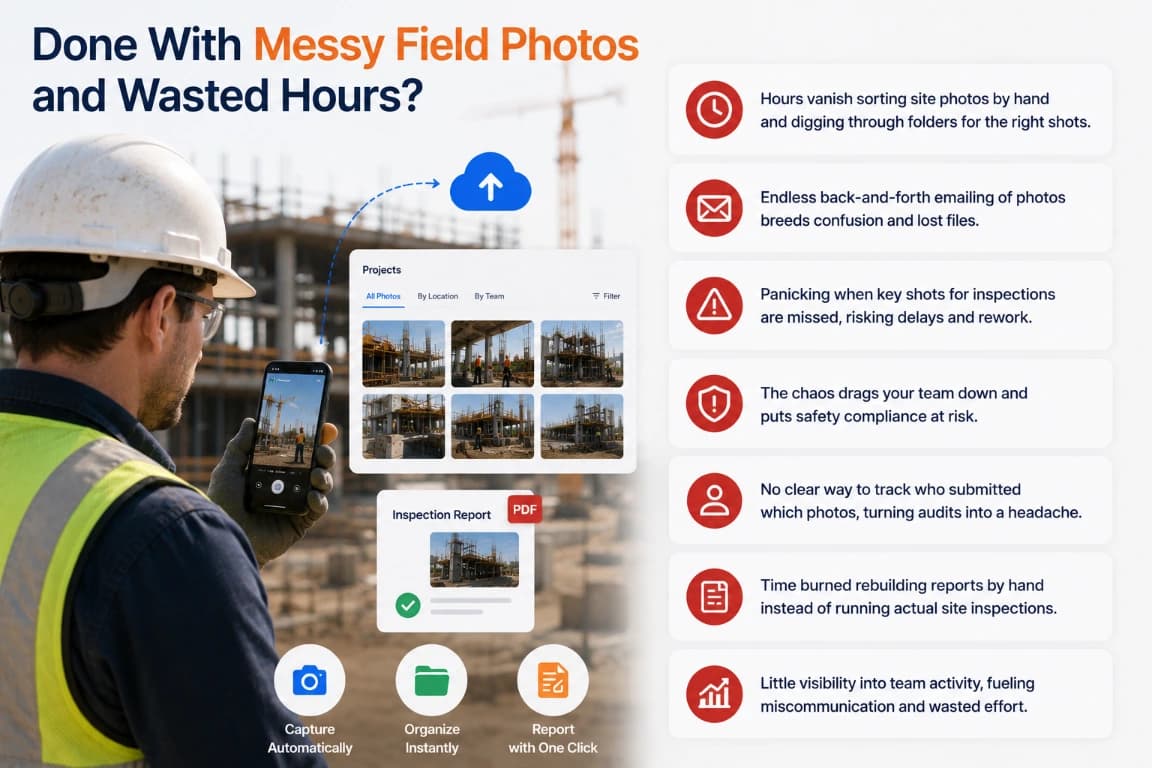
Choose Where Your Workflow Starts
The mobile app handles field capture. Teamspace adds a shared project workspace for team review and delivery.
TimeMarkerGps mobile app
Use the camera workflow on iPhone or Android to capture field conditions inside the selected project. Add the notes and enabled context fields required by your team.
TimeMarkerGps Teamspace
Create teams and projects, review records by project or contributor, and use supported views, sharing options, reports, and exports from the web workspace.
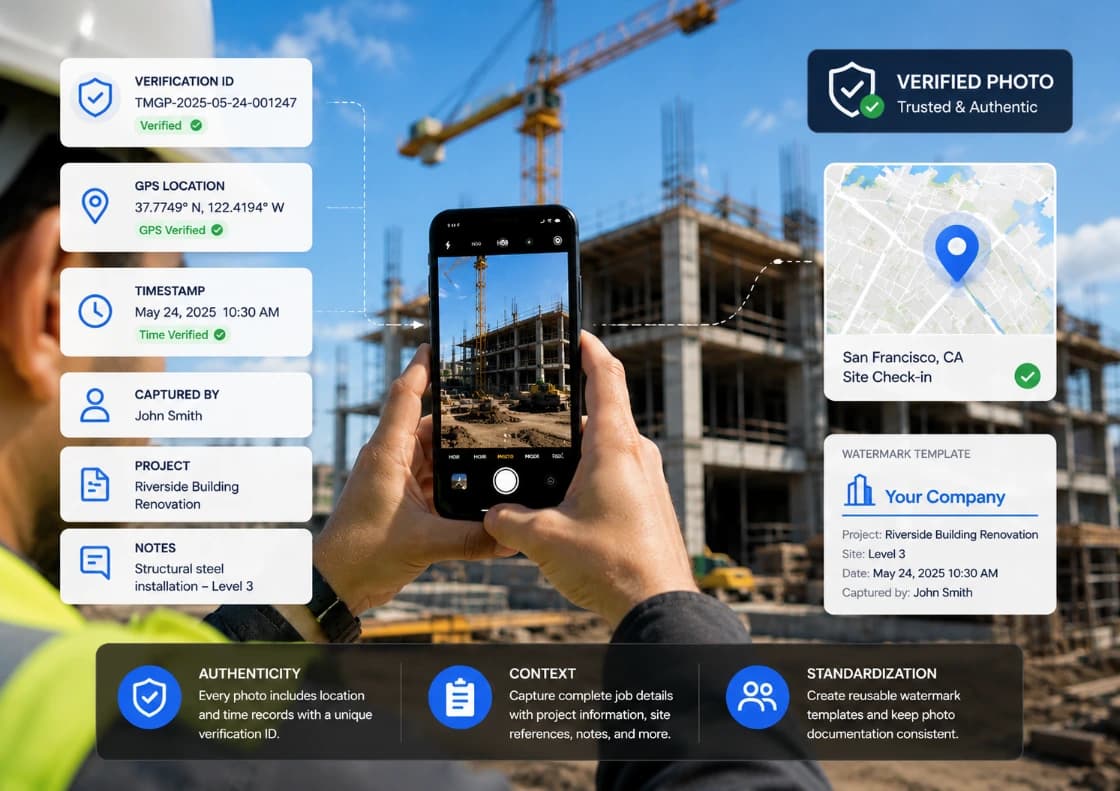
Capture From the Field
Select the right project
Choose the project before capture so the record starts with the correct job context.
Capture the required condition
Photograph the work, milestone, inspection point, delivery, or issue while it is visible on site.
Add useful context
Depending on enabled fields, permissions, and available services, the record can include time, location, coordinates, notes, logo, weather context, project, and contributor details.
Check pending work
When connectivity is limited, confirm which captures are waiting and verify that they become available after the device reconnects.
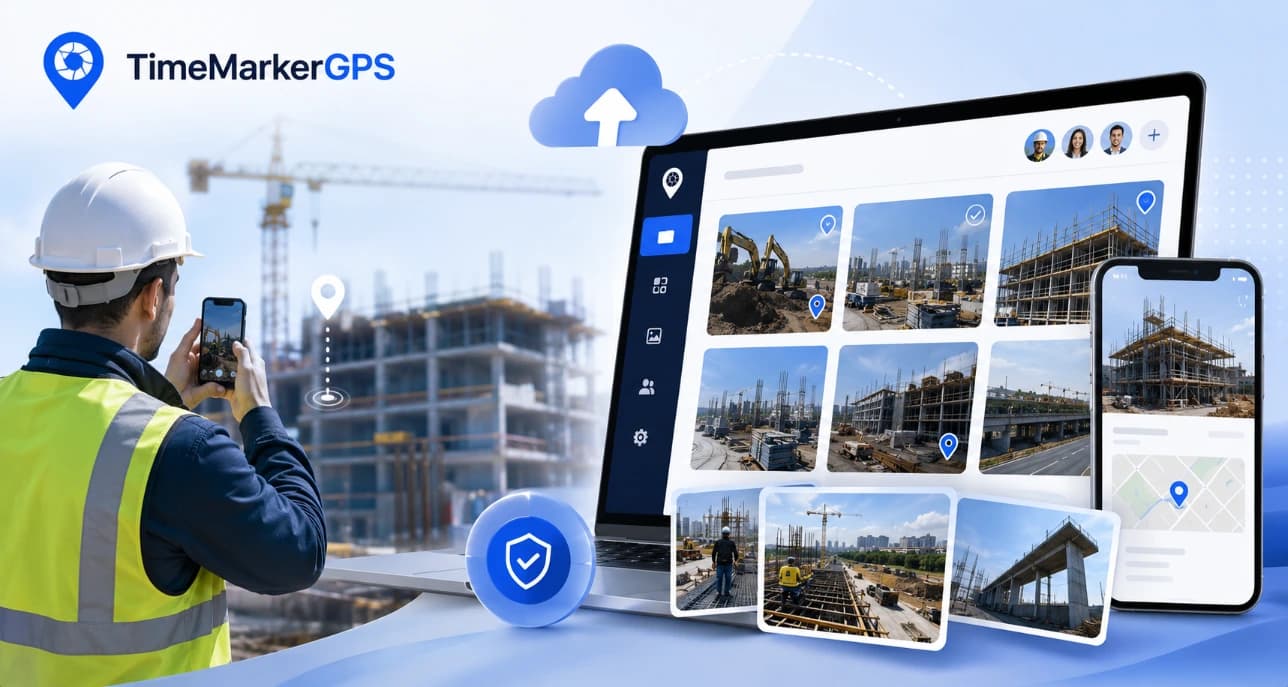
Organize and Review From the Office
Keep records with the project
Teamspace associates stored records with projects, teams, and contributors so office reviewers have a consistent place to begin.
Filter the review
Narrow records by available project, contributor, type, status, or date information.
Use the appropriate view
Review photos visually in Gallery, inspect structured details in Photo Sheet, or examine available location context in Photo Map.
Prepare the handoff
Select the relevant records, check their supporting details, and use the sharing or export option required by the recipient.
Before Your First Project
A short setup check prevents avoidable gaps in location, permissions, project assignment, and sync status.
1. Confirm permissions
Allow the camera and the location access required by the fields your team plans to use.
2. Create a test project
Use a small internal project to verify capture, project selection, notes, and contributor details.
3. Test reconnection
Capture under limited connectivity and confirm how pending work appears after the device reconnects.
4. Test the output
Generate the sharing link, report, or export format your client or internal reviewer expects.
TimeMarkerGps Download FAQs
Answers to common questions before installing the app or starting a team workflow.
Use the App Store link on this page for iPhone or iPad and the Google Play link for supported Android devices. Follow the store listing for current compatibility details.
The mobile app provides the capture workflow. Use Teamspace when the team needs shared projects, centralized review, mapping, reporting, sharing, or export workflows.
Camera access is required for capture. Location and other permissions depend on the context fields your team enables. Review the current store listing and in-app prompts before deployment.
Supported capture workflows can retain pending work and make it available after reconnection. Test the current app version and sync indicators under your actual site conditions.
A supported visible code can be read from an image and used to retrieve the associated stored record for comparison. The lookup displays available stored details; it is not by itself a legal guarantee or proof that every image copy is unedited.
Start with one real project and a small group of field and office users. Confirm camera and location permissions, test capture in areas with limited connectivity, and review the sharing or export steps your team plans to use.
Start With One Test Project
Install the app, create a small project, and verify the full capture-to-review workflow before rolling it out to the wider team.


A Shared Workflow for Teams That Document Field Work
Use the mobile app at the point of work and Teamspace for project-level review. Test the current app version with your devices, permissions, network conditions, and required output formats before standardizing the workflow across a team.